Monday, December 24, 2007

How to Build a Computer from Scratch

How to Build a Computer from Scratch

It used to be the case that building your own computer from scratch would save you a couple of hundred dollars, but nowadays component parts have massively reduced in price and you can buy a fully functioning computer for around the same price as building one.

There are still some advantages though that make building your own computer a worthwhile option, it will help you to learn about the different components, what they do and how they work, you can build it to your personal specifications and there is no felling on earth like powering up your fully functioning computer for the first time and saying to yourself "I did that."

You don't need to be an computer genius to build a computer, the mother board has numerous slots, where your components fit into and they because of the design they can only fit in the slots the correct way around, even the wiring and cables all fit into specific slots on the motherboard and on the casing.

The only real problem that you may come across are the dip switches on some components but if you follow the manufacturers instructions carefully these shouldn't really be anything to worry about.


Where do I start?

First of all you need to get a clear picture of what you want the computer for, do you just want a basic computer for using the internet or do you want an all singing all dancing computer that can do everything except go upstairs and make your bed for you, of course the more that you want your computer to do the more expensive the component parts will be, for example you may pay $40 for a basic graphics and sound card for your computer but if you are building a gaming computer you would have to pay at least 10 times that for a card that would cope with your games. Once you decided what your computer will be used to do its time to get the components that will be suitable for your requirements.

For the purposes of this page I will be using a basic computer, but it will be easy to update it if you wish to increase the specification at some point in the future.


Hardware requirements

Motherboard

Casing

Processor

Processor fan

Power supply unit

Modem or Router

Memory

Hard disk drive

CD or DVD DRIVE

Sound and graphic cards (Optional)

Floppy disk drive (optional)

MONITOR

KEYBOARD

MOUSE

SPEAKER


What tools do you need?

What tools do you need?

Surprisingly you don't need an extensive or professional tool kit to build a computer, you will only really need a flat screwdriver, a cross screwdriver and to avoid damaging the delicate components, an anti static wristband.

In some cases you may not need any tools what so ever because everything locks in place automatically

Motherboard


Computer casing with built in power supply

Putting it all together.

When you have chosen your motherboard you will need to find a casing that is made to house the type of motherboard that you buy, asking at the sales desk is a good idea if you are unsure which case to get. Normally the power supply unit comes with the case so that is another worry taken care of.In a basic motherboard you would also have a graphics and sound card built into it, taking care of another two items, although you can add a better graphics card and sound card at a later date if you find you want more. There are available slots on your mother board for this reason.

When handling any of the components always wear your anti static wristband.

The first thing to do is to screw the motherboard into the casing, then add your processor, it goes into the slot marked on the picture as socket A,above the processor, you then add the fan which will stop the processor overheating, an over heating processor can explode.

Then connect your power supply to the motherboard ATX Power connector in the picture, then you can add your memory cards, your modem card if you have an internal modem and any other cards that you are adding.

Insert your hard drive, floppy drive and/or CD/DVD ROM drives and connect the cables to the motherboard. and to the power supply unit.

before closing the casing check all of your connections are secure and locked in place.

connect up your monitor keyboard mouse and speakers, as you normally would.

Then power up your home made machine, you know the one that you built all by yourself.


Operating System

Software

Now that you have powered up your machine for the first time it is time to add in your Operating system, insert the disc into your CD/DVD ROM DRIVE and follow the onscreen prompts as they come up, then you will be nearly ready to go, the only thing left after that is to run all of the hardware drivers and you are there.

When you have purchased all of your hardware and software you could be up and running from scratch in about 2 hours. with hardware and software always follow the manufacturers instructions.


Thursday, December 20, 2007

Hacks to Beat Rapidshare Download Limits and Waiting Time

Here are some hints to help you more efficently use rapidshare. Skipping waiting time and bypassing download limits are rapidshare hacks that everybody should know.

Rapidshare has been an excellent tool for sharing large files. Recently users have discovered ways of bypassing the download limits and skipping the waiting time. Here are a description of these methods.

Update: Two new methods of bypassing download limits have been posted. These are more advanced and may require additional software or hardware, but you should check them out when you are done with these easier methods:

RapidShare: NIC tricks and MAC cloning to bypass download limit

Rapidshare traces the users IP address to limit each user to a certain amount of downloading per day. To get around this, you need to show the rapidshare server a different IP address.

Here are some methods for doing this:

1. Short-Out the JavaScript:

    1. Goto the page you want to download
    2. Select FREE button
    3. In the address bar put the following: javascript:alert(c=0)
    4. Click OK
    5. Click OK to the pop-up box
    6. Enter the captcha
    7. Download Your File


2. Request a new IP address from your ISP server.
    Here's how to do it in windows:
    1. Click Start
    2. Click run
    3. In the run box type cmd.exe and click OK
    4. When the command prompt opens type the following. ENTER after each new line.
    ipconfig /flushdns
    ipconfig /release
    ipconfig /renew
    exit


    5. Erase your cookies in whatever browser you are using.
    6. Try the rapidshare download again.

    Frequently you will be assigned a new IP address when this happens. Sometime you will, sometimes you will not. If you are on a fixed IP address, this method will not work. To be honest, I do not know how to do this in linux/unix/etc. If this works for you, you may want to save the above commands into a batch file, and just run it when you need it.


3. Use a proxy with SwitchProxy and Firefox:


4. Use an anonymous service:
    Running your system through the tor network should in theory work; however, it is difficult to use and setup. Plus, you allow others to run their evil deeds through your system as well by using this system. Anonymizer 2005 is inexpensive, easy to use, but not free. Other pay services would likely work as well.


5. You can use a bookmarklet to stop your wait times:
    1. Open IE
    2. Right Click On This Link
    3. Select Add to Favorites
    4. Select Yes to the warning that the bookmark may be unsafe.
    5. Name it "RapidShare No Wait"
    6. Click on the Links folder (if you want to display it in your IE toolbar)
    7. Click OK
    8. You may need to close and reopen IE to see it
    9. Goto rapidshare and click the bookmarklet when you are forced to wait

50 Free Tools to make your iPod Better and …

GENERAL iPod MANAGERS

(1) Floola (Win, Mac, Linux) - portable iPod manager. Features: (1) move audio and video to/from iPod, (2) manage and import/export playlists, (3) last.fm support, (4) multi-lingual, (5) lyrics and podcasts support, (6) search files, (7) iPod troubleshooting, (8) manage notes, (9) sync files between PC and iPod

(2) YamiPod (Win, Mac, Linux) - yet another portable iPod manager. Features: (1) playlists import/export (PLS,M3U), (2) PC to iPod autosync, (3) built-in music player, (4) last.fm support, (5) search, (6) song list export and more

(3) Sharepod (Win) - Features: (1) move files to/from iPod, (2) built-in music player, (3) search, (4) create winamp-style playlists, (5) network file sharing (office, college, etc.), (6) built-in music player and more

(4) Ephpod (Win) - not as flexible as the ones above but has couple of cool features: ultra-fast song transfer, powerful playlist creation features, one click sync, winamp support, bunch of extras (news, weather, movie listings, etc.)

(5) Rockbox - open source replacement firmware for mp3 players. Features: (1) dynamic playlist creation, (2) multiple themes, (3) gapless playback, (4) in-built clock, (5) tagging, (6) plugins and more

(6) Amarok (Linux) - iTunes alternative. Features: (1) manage, create playlists , (2) podcasts support, (3) last.fm support more

(7) Rhythmbox (Linux) - integrated music management application (inspired by iTunes)

DOWNLOAD, CONVERT and RIP

(8) iPodifier (Win) - automatically monitors selected folders, converts videos to an iPod format, adds them to iTunes, and syncs them with your iPod.

(9) Jodix (Win) - converts all popular video formats (DVD/VCD and AVI, MPEG, WMV, RM, RMVB, DivX, ASF, VOB) to an iPod format. Lets you process several files at once.

(10) BoilSoft (Win) - converts AVI, DivX, MPEG, VOB, RM, RMVB, MOV, MP4 and more, to iPod/PSP formats

(11) KeepV (Win) - lets you download and convert Flash/FLV files (YouTube, Metacafe, Dailymotion, etc.) to an iPod compatible format

(12) iTube (Win) - lets you download, convert and transfer any YouTube video onto your iPod video (or iTunes) right from your desktop.

(13) Koyote (Win) - download your favorite videos from Youtube and convert it to Ipod video format. Can also be used to convert other video formats, i.e. DivX, XVid, MP4, DVD, VOB, AVI, WMV, ASF

(14) iPod Video Converter (Win, Mac) - a desktop widget from Yahoo Widgets. Drag your video file on top of it and it’ll convert it into an iPod format

(15) Handbrake (Win, Mac, Linux) - lets you rip your DVDs to iPod, PSP and Zune

(16) CDex (Win) - a portable app that allows you to ripp cds directly to your iPod

(17) iSquint (Mac) - convert several popular video formats (MOV, MP4, AVI, DV, MPG, VOB, 3GP, ASF, WMV, FLV, M4V, etc.) to an iPod format

(18) Vixy - web-based video downloader and converter for iPod

(19) TVHarmony (Win) - perfect TiVo companion that lets you monitor TiVo for your favorite programs, download and convert them to iPod/PSP/Palm/XBox… formats. Ability to download stuff from popular video sites included.

(20) Videora (Win) - convert regular PC video files (AVI, MPEG, etc) into iPod compatible format

COOL iPod EXTRAS

(21) iPodWizard (Win) - lets you change the graphics, font and strings on all iPod models with screen

(22) PodPlayer (Win) - lets you play music directly from your iPod. View songs in iTunes-like manner (by artist, genre, album, playlist, etc), extract songs, find duplicates, and more.

(23) CantoPod (Win, Mac) - get song lyrics on your iPod (with over 200.000 lyrics to choose from)

(24) vPod (Win)- transfer music from Windows to iPod. Scans your music library and shows what’s not on your iPod.

(25) iPodDisk (Mac) - another tool for copying music from your iPod.

(26) 100 Portable Apps to put on your iPod (Win, Mac) - all-purpose, no-install-required software (office tools, antivirus, email, games, etc.)

(27) Axport (Win) - handy iTunes addon that enables you to copy files off your iPod with one click

(28) iDirectionz (Win) - store driving directions on your iPod

(29) gPodder (Linux) - podcast receiver, catcher and sync (with iPod) tool

(30) GoogleGet (Win) - weather+news combo tool

(31) piPod - guide to the best pizzerias in the five boroughs of NYC

(32) Senuti (Mac) - syncs files off your iPod and sends them directly to your iTunes library. It can also play songs directly off iPod

(33) Weather for Me (Win) - downloads weather forecasts from Myforecast.com and puts them on your iPod

(34) Encyclopodia (Win, Mac, Linux) - this incredible tool brings wikipedia to your iPod

(35) iPodLinux - port Linux into your iPod, with lots of addons

(36) Filter (Win, Mac) - lets you create dynamic playlists (automatically fill and refreshes your iPod)

(37) eBook-creator - web-based tool that creates iPod compatible ebooks from regular text files

(38) iPod-notes - silimilar to eBook creator but also lets you create iPod eBooks from a webpage

(39) iPodlinks - variety of icons and wallpapers

(40) iPodGym - turn iPod into your gym advisor, over 80 exercise videos along with work-out guidelines

(41) iPodArcade - web source for iPod games, i.e. trivia, adventure, madlibs and jokes

(42) GoodEats (Win) - loads all of the recipes from Good Eats into your iPod

(43) GTKpod (Win, Mac, Linux) - provides Graphical User Interface for iPod using GTK2

(44) ShuffleDB (Win, Mac, Linux) - simple and easy-to-use iTunes alternative for iPod Shuffle (database builder)
(45) iPodulatorPRO (Win, Mac) - RSS reader(?), games and powerful notes management feature
(46) iBoy (Win, Mac, Linux) - Gameboy and Gameboy Color emulator for the iPod

(47) iGain (Win) - handy iTunes addon that lets you adjusts the tracks’ volume (so that the series of tracks appear to play at a consistent volume) and sync adjustments with tracks on iPod

(48) Mogopop (Win, Mac) - web community where you can create and share multimedia content for iPod. Lets you quickly download user-submitted videos (museum tours, comedy videos…), music from independent artists and games

(49) myPodder(Win, Mac, Linux) - automatically downloads podcasts and syncs them to your iPod

(50) Tools to strip DRM - (1) DRMdumpster (Mac) - requires CD-RW, (2) myFairTunes (Win) - works with older version of iTunes (7.0.2.16 and below) and (3) Tunebite (Win) - only non-free tool listed here

(51) Selected Podcasts Sources: WellToldTales (fiction, horror) | PodioBooks (audio books) | Odeo (general)

18 Free Ways To Download Any Video off the Internet

It seems like everyone these days is downloading, watching, and sharing videos from video-sharing sites like YouTube, Google Video, MetaCafe, DailyMotion, Veoh, Break, and a ton of other similar sites. Whether you want to watch the video on your iPod while working out, insert it into a PowerPoint presentation to add some spice, or simply download a video before it’s removed, it’s quite essential to know how to download, convert, and play these videos.

There are basically two ways to download videos off the Internet and that’s how I’ll split up this post: either via a web app or via a desktop application. Personally, I like the web applications better simply because you don’t have to clutter up and slow down your computer with all kinds of software!

Free Web services for downloading videos from video-sharing sites

clipnabber ClipNabber allows you to download videos from YouTube, Metacafe, etc by simply copying and pasting the URL. You’ll then get a link whereby you can download the file to your computer, iPod, iPhone, or any other media player. You’ll need to have an FLV player for the YouTube videos. Quick and very easy to use!
zamzar Zamzar is a free online file conversion web application that can not only convert videos off the Internet to AVI, MPEG, 3GP, MP4, MOV, etc, but also converts between audio, image, and document formats. Paste the URL into Step 1 and then convert the file to your favorite format.
javimoya VideoDownloader is a FireFox extension, but also allows you to paste in any URL from many sites such as Blip.TV, iFilm, and even social networking sites like MySpace. You can also download a free FLV player from their site to play the videos.
vixy.net Vixy.net is another site that not only downloads online videos, but will also convert them AVI, MOV, MP4, 3GP, or MP3 (if you want to extract the audio from the file). Using this site, you don’t have to worry about downloading a FLV player as you can convert it to Windows format. (Same as Zamzar)
keepvid KeepVid also supports just about any video sharing site out there and the only difference about this site is that it also has a Top Videos section, so you can quickly download the most watched videos around the web.
mediaconverter Media Converter is similar to ZamZar and vixy.net, but requires you to create an account and log in. Also, it seems like it only supports downloading and converting videos from YouTube. You can also download their video download program, but it only supports 5 sites.
heywatch Hey! Watch is an online video encoding web service that encodes video into different formats including HD very quickly. The graphical interface is very nice and there are lots of features and options, such as the ability to transfer any video from the web directly to an FTP server or to online storage.
youtubex YoutubeX, as the name suggests, allows you to download videos from YouTube. Obviously, it only supports YouTube, but it has a couple of other features, such as the ability to play your video on the site and find popular videos quickly.
videoronk VideoRonk searches across multiple video-sharing sites such as Google Video, YouTube, MetaCafe and DailyMotion to find the most popular videos on each of them. You can either watch them on VideoRonk or download them to your computer in FLV format.
viddownloader VidDownloader supports about 10 sites including the major ones and can download the videos in DivX AVI format. It’s very easy to use and can also extract only the audio from a video by choosing “Just Audio” on the download page. You don’t have to worry about having an FLV player since it converts the files to Windows format.
kcoolonline According to their web site, they support more than 98 video sites including MySpace, CollegeHumor, iFilm, etc. You’ll have to rename the files you download from YouTube with the .FLV extension at the end.
download videos This site is a foreign site, but is easy to use and supports most of the major sites. You can also download a free FLV player off their site to play videos from YouTube.
downthisvideo DownThisVideo has a nice tag cloud at the top that you can click on to find videos quickly. From what I could tell, this site is mostly used by Japanese because the popular videos are mostly Anime, etc. However, you can still use it to download any YouTube video.

Video Downloaders for your DeSktop

If you prefer to have a desktop application that can download videos for you, check out the following list:

1. Orbit Downloader - This is by far the best desktop application I have seen for downloading any type of social media off the Internet. It can download videos and music from MySpace, YouTube, Pandora, Rapidshare, and lots more. It has a great interface and carries a very small foot print.

2. VDownloader - A small little application that can download videos from many sites and converts them to AVI or MPG format.

3. VideoDownloader - A useful FireFox add-on that supports more than 60 video sharing sites. It can also download other objects on a web page, such as movies, MP3s, flash files, and Quicktime movies directly.

4. Ares Tube - Another popular video download application that is very small and very easy to use. You can download videos in batches by entering URLs into a queue and Ares Tube can convert them into different formats such as iPod, MP4, MPG, etc.

4. YouTubeGrabber - Not a very fancy program, it simply takes your URL and downloads the file. No conversion is done and you’ll need to install an FLV player to watch the videos.

5. KeepV - Downloads videos from YouTube, MySpace, and Google and converts them to either MOV, 3GP, AVI, iPod, or PSP format.

10 Most Downloaded Free Security AND PC Care Programs

TOP 5: Free Security Programs (Antivirus, Spyware Removal, etc.)

(1) AVG Anti-Virus Free Edition Memory-friendly free antivirus program that comes with lifetime free access to virus definition updates. Highlights include automatic update, real-time protection, free virus database updates, and some more. With nearly 1 mil. downloads (926,832) last week alone, this gotta be a good tool.

(2) Ad-Aware 2007 - Free utility to remove Spyware, Adware and whatever Crapware you may have. Scans your RAM, Windows Registry, hard drives, and external storage devices for known data-mining, advertising, and tracking components. One of my personal favorites. Note: After installation, it will ask you for a registration code. Just hit Cancel and you’re good to go. (Nr. of downloads last week: 864,874)

(3) Spybot - Search & Destroy - Yet another spy/ad/craplet removal tool. Also lets you clean-up program and web-usage tracks, and even fix spyware-caused Registry inconsistencies. I have been using it for more then a year now and love it. (Nr. of downloads last week: 184,292)

(4) Advanced WindowsCare Personal - Comprehensive PC health maintenance utility that offers one-click clean-up and repair wizard. Features include: Spyware removal, security warnings, privacy protection, Registry fix, temporary files clean-up, Windows repair and more. (Nr. of downloads last week: 101,321)

(5) Avira AntiVir PersonalEdition Classic - By far less popular than above AVG, also some users report rather slow scan process. Nonethless, with 85,154 downloads last week still remains listed as the second most popular free antivirus software.

TOP 5: Free PC Maintenance / Optimization Programs (Disk Defragmenter, Registry Cleaner, etc.)

(1) Advanced WindowsCare Personal - see above (Nr. of downloads last week: 101,321)

(2) Auslogics Disk Defrag - Faster, more efficient and dead-simple alternative to Windows Disk Defragmenter. Looking at it’s feature set the only drawback I can think of is lack of auto-run scheduler. Other than that, seems like an excellent program. [Note: Disk Fragmentation leads to system slowdowns, PC crashes, slow startup/shutdown and sometimes to system failures] (Nr. of downloads last week: 44,967)

(3) CCleaner - Extensive and rather fast registry fixer + browser junk clean-up tool. Includes registry backup feature. Make sure to back up your registry before running CCleaner cleanup. (Downloads last week: 36,940)

(4) XP SafeGuard - XP SafeGuard lets you alter and disable several Windows settings to boost system performance. Disable questionable services, remove windows messenger, performance tweaks, disable windows automatic update, and lots more. (Downloads last week: 21,777)

(5) WinDirStat - Handy piece of software that offers an informative visual display of your hard-drive usage. Lets you quickly figure out what occupies most of your disk space (movies, documents, pics, those hidden videos :-) , etc.)

Gmail Craze: 40 + Tools and Hacks for Gmail

FIREFOX EXTENSIONS

Gspace - multi-platform firefox addon that turns your gmail account into powerful online storage tool

Gmail Search Extension - search your gmail account directly from the firefox search bar

GcalQuickTab - toggle between gmail and google calendar with keyboard shortcuts

GTDInbox - turns your account into flexible and feature-loaded ToDo-management service (GTD = Getting Things Done)

GMail Manager - manage multiple GMail accounts right from your browser

DragDropUpload - this handy extension lets you quickly attach one or more files to your emails by dragging them over the “Attach a file” link

[update] CustomizeGoogle - removes ads, switches you from http to https, hides the spam counter, quick contacts box, invite box and forces fixed font

[update] Better Gmail - integrates bunch of cool features, i.e. attachment icons, attachment Reminder, mail preview, filter assistant, label colors, macros, and saved searches

[update] GmailSkinz - powerful firefox addon with lots of cool features: (Note: some users reported having problems with this addon)

  • change the colour of your inbox(from green to dark green),
  • view weather, google calendar and news headlines along side your emails,
  • integrate any Google IG module to sidebar menu(Awesome),
  • insert images from your Picasa web album in to emails,
  • insert smileys,
  • change the attachment paperclip to an icon indicating the type of attachment,
  • make the navigation (Inbox, Starred, Sent Mail, etc) horizontal,
  • hide various page elements (invite panel, page footer and your email address from the top right of inbox).
  • complete integration with Gmail: addon settings can be changed directly from the Gmail settings page.

Google Toolbar with Gmail search - Official Google toolbar featuring one-click Gmail search

E-Mail Notifier Toolbar | Gmail Notifier - as titles say ‘…notifier

_

GREASEMONKEY SCRIPTS (What is Greaseamonkey?)

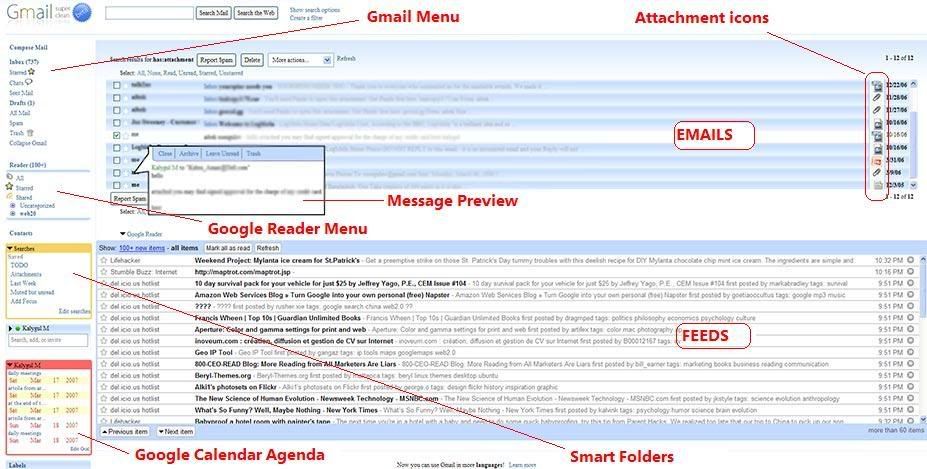
Gmail Super Clean - clean and distraction-free gmail. Looks great, check it out here

Gmail Spam-count Hide - hides spam count link

GMail Attachment Icons - adds attachment icons to emails, letting you see what kind of attachment an email has (HTML,JPG, PDF….) [update: ‘Attachment icons’ isn’t a standard greasemonkey script, it’s an addon for a similar Firefox extension known as Stylish. However, installing it on greasemonkey should be fine as well]

Google Reader Integration - integrates Google Reader into Gmail. Highly Recommended (demo)

GmailTo - forces all ‘mailto’ links to open in GMail

Saved Searches - lets you create ’saved searches’(aka smart folders) and display them in the separate box in the navigation menu. Clicking on a search executes the saved query. Demo

Conversation Preview - handy addon that lets you quickly preview message contents right from the main inbox window. See demo below

Google Calendar Integration - integrates Google Calendar agenda into Gmail. Demo

Label Colors - lets you color menu labels to make them stand out better. Demo

Gmail Macros - adds extra keyboard shortcuts to Gmail (i.e. “t” for move to trash, “r” for mark as read, “p” for mark as read and add to archive…etc). Read more

[update] SSLGoogle - force google mail, docs and cal pages and their intra-links to a secure connection(HTTPS)

[update] Gmail Encrypt - encrypts outgoing emails

[update] Gmail Date Search - adds a Search by Date button to Gmail’s search form

[update] Gmail Signature Float - moves your mail signature to the top of the message rather than the bottom

Following image displays all above mentioned scripts in action(click to enlarge and open it in a new windows)
gmail greasemonkey scripts

_

Desktop APPS and Web TOOLS:

GmailDrive (Windows) - adds a new virtual drive(’Gmail Drive’) to My Computer folder and uses gmail as its storage medium. Drag’n drop files Gmail Drive and it will store them on your gmail account as if on additional hard drive. More on GmailDrive

[update] gDisk (Mac) - similar to above mentioned GmailDrive but for Mac users

Gmail ToDo - handy desktop application that stores entered todo’s in a todo label on gmail

Desktop Notifiers: GMail Notifier(official release from Google), GTray (Win XP), GCount (Mac), Gmail+Growl 2.0 (GmailNotifier addon that lets you further customize ‘new mail’ alerts)

GMail for Mobile - access gmail from your mobile

GmailFS - mountable Linux filesystem which uses Gmail as its storage medium

Google Talk - Google’s IM service which is fully integrable with GMail

You’ve Got Gmail - Gmail plugin for Trillian IM client

Update: more notifiers: KCheckGmail(Linux), Notifier2(Win)
_

TIPS and HACKS

Unbl0ck - use this tool to access gmail from places where it’s blocked (work, school…)

Gmail icon generator - creates an image of your email address to minimize spam exposure

Gmail To Thunderbird - how to access your Gmail using Mozilla Thunderbird

Shortcut List - handy, printable list of keyboard shortcuts for the Gmail

Hotmail Contacts Import - explains how to import contacts from Hotmail to Gmail

Gmail trick that explains how to find that ’someone’ who gives away your email address to spammers

Attach any file type - bunch of tricks showing you how to attach and send blocked file types, i.e. ‘*.exe’

JimsTips - huge collection of basic gmail tips

[update] What to do if your Gmail is nearly full? See here.

[update] Secret keyboard shortcut for deleting messages. Check it out here

[update] How to - import your archived emails into Gmail

[update] How to - Backup Gmail your Gmail using Google Groups

[update] How to - Re download gmail messages into outlook

[update] How to - Work with Gmail Attachments (includes cool tips, Greasemonkey scripts and Firefox addons

1 Awesome Gmail tip You Don’t Know about. Seriously.

Let’s say that your email address is ‘GeorgeBush@gmail.com’, basically everything sent to any of the following email addresses will be forwarded to your primary email.

  • GeorgeBush@gmail.com
  • G.eorgeBush@gmail.com
  • Ge.orgeBush@gmail.com

  • GeorgeBus.h@gmail.com
  • GeorgeBush@googlemail.com
  • G.eorgeBush@googlemail.com
  • Ge.orgeBush@googlemail.com

  • GeorgeBus.h@googlemail.com

And that’s not all, you can place as many dots as you want, it can be even something like ‘G.e.o.r.g.e.B.u.s.h@gmail.com’ and you’ll still get it on ‘GeorgeBush@gmail.com’

Additionally, I just also found out that you can embed random text to your email ID using ‘+’ sign. That is to say ‘GeorgeBush+anythingyouwant@gmail.com’ can be used as your email address, as well.

5 Tools to Make Windows XP Look Like Vista

Do you like Windows Vista only because of its newly revamped Graphical User Interface? It surely does have an attractive interface but many are still hesitant to upgrade. Some because of it’s massive system requirements, and some because of all the negative buzz around it. Whatever your reasons are, you still can get a Vista like look even on your Win XP system. Below are some of the better free tools that can help you to make your Windows XP look like Vista. Just make sure you got a bit of spare RAM on your system.

Make Windows XP look like Windows Vista

Vista Start Menu

Vista Start Menu turns XP’s Start menu into one like on Vista. Not only do you get a better look but also many new features that are normally not there. These include: resizable start menu, zoom in/out, program launcher, desktop search, power buttons, tabs, and more. Another noteworthy aspect, Vista Start Menu does not change your system settings, thus making it easy to install, as well as simple to remove.

Vista Start Menu 2.2

Vista Transformation Pack 7

VTP changes XP’s interface, including the Start menu, the Control Panel, system dialogs, icons, and more, to Vista style. Also includes a transparency function to mimic Vista’s Aero Glass functionality. It’s probably the most comprehensive package out of all, so be very careful with it. While I haven’t experienced any problems some folks reported difficulties in uninstalling it (see comments here). Here are some of the notable changes that will be made to your system.

[Update: Version 8 was released yesterday (Nov 28). It’s seems to be better and much more stable. Read more here]

  • Boot screen / Welcome Screen / Logon Screen.
  • New desktop, file and toolbar icons.
  • Progress Dialogs.
  • New System Tray icons.
  • New Sounds scheme.
  • New interface visual styles.
  • Windows Media Player Skins.

RocketDock

RocketDock is a portable, memory-friendly, smoothly animated, alpha blended application launcher that sits on your screen. It provides a nice clean interface to drop shortcuts on for easy access and organization. Some features that are worth looking at include: Minimize active windows to the dock, drag-n-drop interface, Dual-monitor support, Auto-hide and Popup on mouse over, and Running application indicators. Check it out in action in the video below

VistaMizer

VistaMizer modifies about 400 of your system files, and when you reboot your system after installation you won’t remember how your old desktop looked like. It’s highly customizable and changes lots of stuff. What’s really good about is that it will keep backup of all the changes (so that you can easily revert it) and won’t replace/overwrite anything that would risk destabilizing your system.

WindowBlinds

WindowsBlinds is not a program specifically designed to Vistalize your system. It’s more a tool for applying different visual theme on your entire current Windows environment: changing overall look and feel, title bars, push buttons, start bar, start menu and more. Similar to the above RocketDock, it claims to be memory-friendly, so it shouldn’t slow down your system. Once installed, you can either apply one of the default visual themes or download one from the WindowsBlinds gallery (over 1000 themes). WindowsBlinds comes both in a free and paid version. Although the free version lacks some of the additional features it still does the job.

WindowBlinds 5.0

Ultimate GMail Collection: over 80 Tools and Tips

Firefox EXTENSIONS

Gmail Manager - manage multiple Gmail accounts, receive new mail notifications, view unread messages right from your browser statusbar. “…The Gmail Manager Firefox add-on obviates the need to keep your Gmail open in a tab all the time by displaying your email info in a statusbar pop-up…” [via LifeHacker]

GmailThis - excellent browser bookmarklet that lets you quickly forward highlighted text on any webpage via Gmail.

Better Gmail - integrates features of 10 Greasemonkey scripts into one firefox addon. These include: Google Reader integration, Mac-like skin, GCal integration, Fixed font and more.

GmailSkinz - powerful firefox addon with lots of cool features: change Inbox color , Add Google IG modules, insert images from Picasa albums, insert smileys, make navigation menu horizontal, hide unnecessary page elements, and more. (Note: some users reported having problems with this addon).

CustomizeGoogle - removes ads, switches you from http to https, hides the spam counter, quick contacts box, invite box and forces fixed font

Gspace - multi-platform firefox addon that turns your Gmail account into powerful online storage tool.

Gmail Search - search your Gmail account directly from the firefox search bar.

GcalQuickTab - toggle between Gmail and Google Calendar with keyboard shortcuts.

GTDInbox - turns your account into flexible and feature-loaded ToDo-management service (GTD = Getting Things Done)

DragDropUpload - this handy extension lets you quickly attach one or more files to your emails by dragging them over the “Attach a file” link.

Google Toolbar - official Google toolbar featuring one-click Gmail messages search.

FireGPG - integrates contextual menu with some useful functions: encrypt, decrypt, sign, etc. Read more on how to use it here.
—-

GreaseMonkey SCRIPTS (What is Greaseamonkey?)

gmail greasemonkey scripts
(click to enlarge)

Gmail Super Clean - clean and distraction-free Gmail. Looks great, check it out here

Gmail Spam-count Hide - hides spam count link.

Google Reader Folders - adds a little box that lists the folders on Google Reader along with the number of unread items in each one.

Google Reader Integration - complete integration of GReader into Gmail. Excellent! (view). Jump to Google Reader Tools and Tips.

Google Calendar Integration - integrates GCal agenda into Gmail (view). Jump to Google Calendar Tools and Tips.

Conversation Preview - lets you quickly preview message contents right from the main inbox window (view).

Saved Searches - create ’saved searches’ (aka smart folders) and display them in the separate box in the navigation menu. Clicking on a search executes the saved query (view).

Folders4Gmail - allows you to create nested labels (i.e. labels and sub-labels) [via LifeHacker].

Gmail Date Search - adds a ‘Search by Date’ button to Gmail’s search form.

Label Colors - color menu labels to make them stand out better (view).

GMail Attachment Icons - adds attachment icons to emails, letting you see what kind of attachment an email has (HTML ,JPG, PDF….). Note: ‘Attachment icons’ isn’t a standard Greasemonkey script, it’s an addon for a similar Firefox extension known as Stylish. However it should work with Geasemonkey as well.

GmailTo - forces all ‘mailto’ links to open in GMail.

Fixed Font Toggle - adds a font toggle button so that messages can be viewed in a fixed-width font. Read more …

Gmail Macros - adds extra keyboard shortcuts to Gmail (i.e. “t” for move to trash, “r” for mark as read, “p” for mark as read and add to archive…etc). Read more…

Gmail Encrypt - encrypts your messages to prevent unwanted people from reading it. Just in case someone intercepts it while it’s on the way.

SSLGoogle - forces Gmail, Google Docs and GCale pages and their intra-links to open via secure connection (HTTPS).

Signature Float - moves your email signature to the top of the message rather than the bottom.

Attachment reminder - reminds you to attach a file to your Gmail, based on whether you have the word attach (ed, ment, etc) in the body.

—-

Desktop Programs and Web Apps

GmailDrive (Win) - adds a new virtual drive (’Gmail Drive’) to My Computer folder. Drag’n drop files on top it to store them in your Gmail account.

gDisk (Mac) - Mac alternative for the above mentioned GmailDrive.

Gmail ToDo - handy desktop application that allows you to quickly add and save todo’s in a ‘ToDo’ label in your Gmail account.

FlipMail - free service for forwarding some/all of your emails to your mobile (US Only).

Gmail Loader - cross-platform (Win, Mac, Linux) tool to help you load all your old message archives from other email accounts into Gmail. [via LifeHacker].

Icon Generator - minimize spam exposure by getting an image for your email address and safely publish it wherever needed.

Blogsigs - lets you auto-include the title of your latest blog post in your email signature. Works with Gmail.

GMail Mobile - access Gmail from your mobile.

Google Talk - Google’s IM service which is fully integrable with GMail.

You’ve Got Gmail - Gmail plugin for Trillian (IM client)

Unbl0ck - web-based proxy for accessing Gmail from places where it’s blocked (work, school,…)

iPhoto2Gmail (Mac) - allows you to instantly email images from within iPhoto. Send either original or optimized (resized) image versions.

MailPlane - “…A full fledged mail client for Google Mail and Mac OS X “. Mail client combining best of Gmail with Mac’s simplicity anduser interface. It’s still in beta though, but you can request invite from here.

GmailFS - mountable Linux filesystem which uses Gmail as its storage medium

—-

GMail Notifiers

- for Windows: GMail Notifier (official), GTray, Notifier2
- for Mac: GMail Notifier (official), GCount, Gmail+Growl 2.0
- for Linux: KCheckGmail
- for Firefox: E-Mail Notifier Toolbar, Gmail Notifier

—-

GMail HowTo’s (over 20 all purpose HowTo guides)

HowTo: Build advanced Gmail filters and persistent searches.
HowTo: Import your archived emails into Gmail.
HowTo: Access Gmail account of someone who dies.
HowTo: Force Gmail notifier to use SSL (instead of HTTP).
HowTo: Import contacts from Hotmail to Gmail.
HowTo: Redownload Gmail messages into outlook.
HowTo: Backup your Gmail messages using Google Groups.
HowTo: Create Google Calendar events from Gmai.
HowTo: Set Gmail as default mail client in Ubuntu (without any additional software).
HowTo: Sync. Google Calendar and Gmail contacts to your desktop.
HowTo: Use rich HTML email signatures straight from Gmail (req. Better Gmail extension).
HowTo: Manage all your email account with Gmail. (Excellent guide for folks with several emails.)
HowTo: Back up Gmail with Fetchmail (Windows).
HowTo: Configure and access Gmail on Mozilla Thunderbird.
HowTo: Use Gmail over IMAP and tag your mail, too.
HowTo: Sync. Micr. Outlook, GCal, Gmail, iPod, and mobile phone.
HowTo: Encrypt and sign Gmail messages using FireGPG extension (see above).
HowTo: Work with Gmail Attachments like a PRO.
HowTo: Attach and send blocked file types, i.e. ‘*.exe’.
HowTo: Find that ’someone’ who gives away your email address to spammers.
HowTo: Gmail on Home Linux Box using Postfix and Fetchmail.

—-

Gmail Shortcuts

- Secret keyboard shortcut for deleting messages [labnol.blogspot.com]
- Shortcuts for Special Gmail Labels [googlesystem.blogspot.com] - for ultra quick navigation
- Gmail Shortcut List: handy, printable list of keyboard shortcuts for the Gmail [comp.nus.edu.sg]

—-

Tips

- Three solid Gmail productivity tips [mattcutts.com]
- What to do if your Gmail is nearly full [bnura.blogspot.com]
- Jim’sTips: huge collection of basic gmail tips [g04.com]